Interface
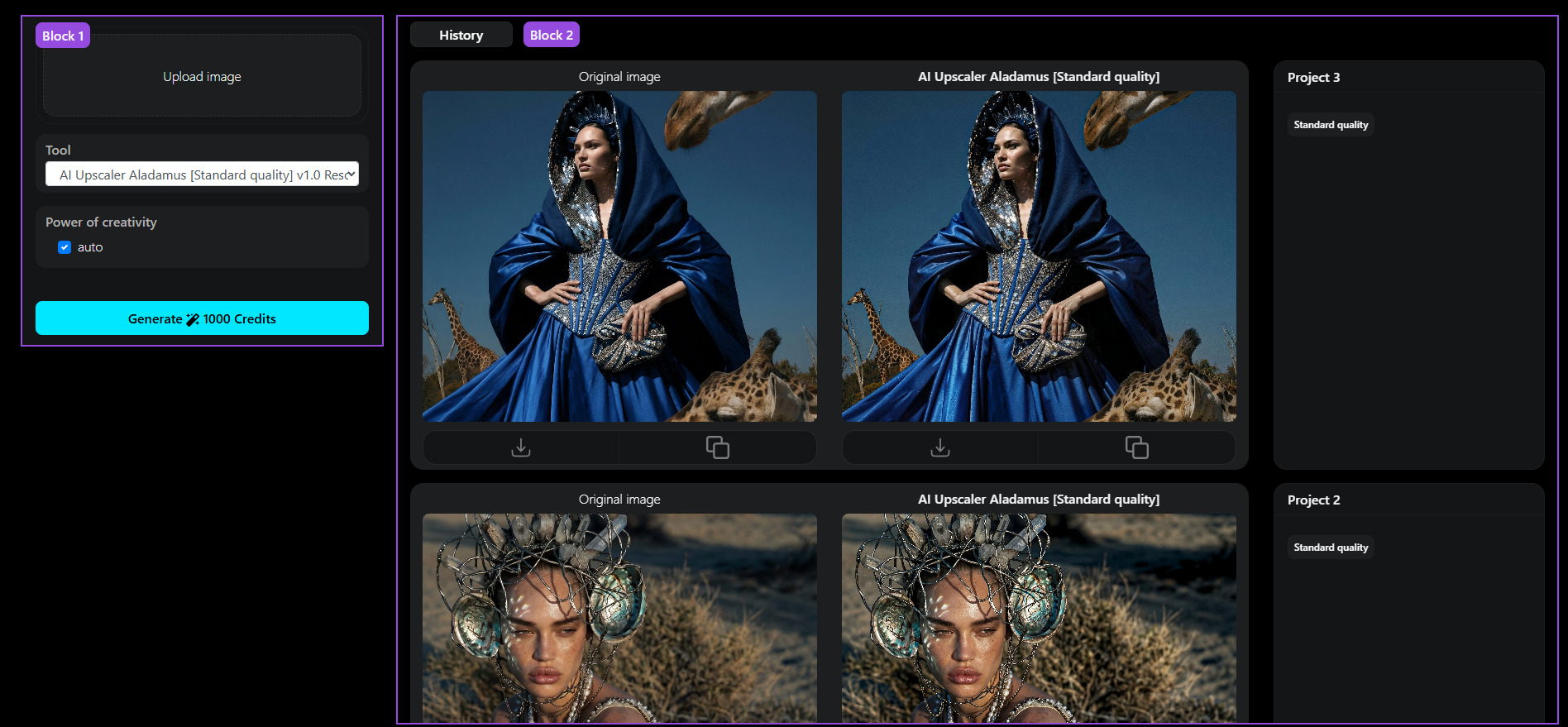
Block 1: Tool Settings.
Main workspace block.
Block 2: History
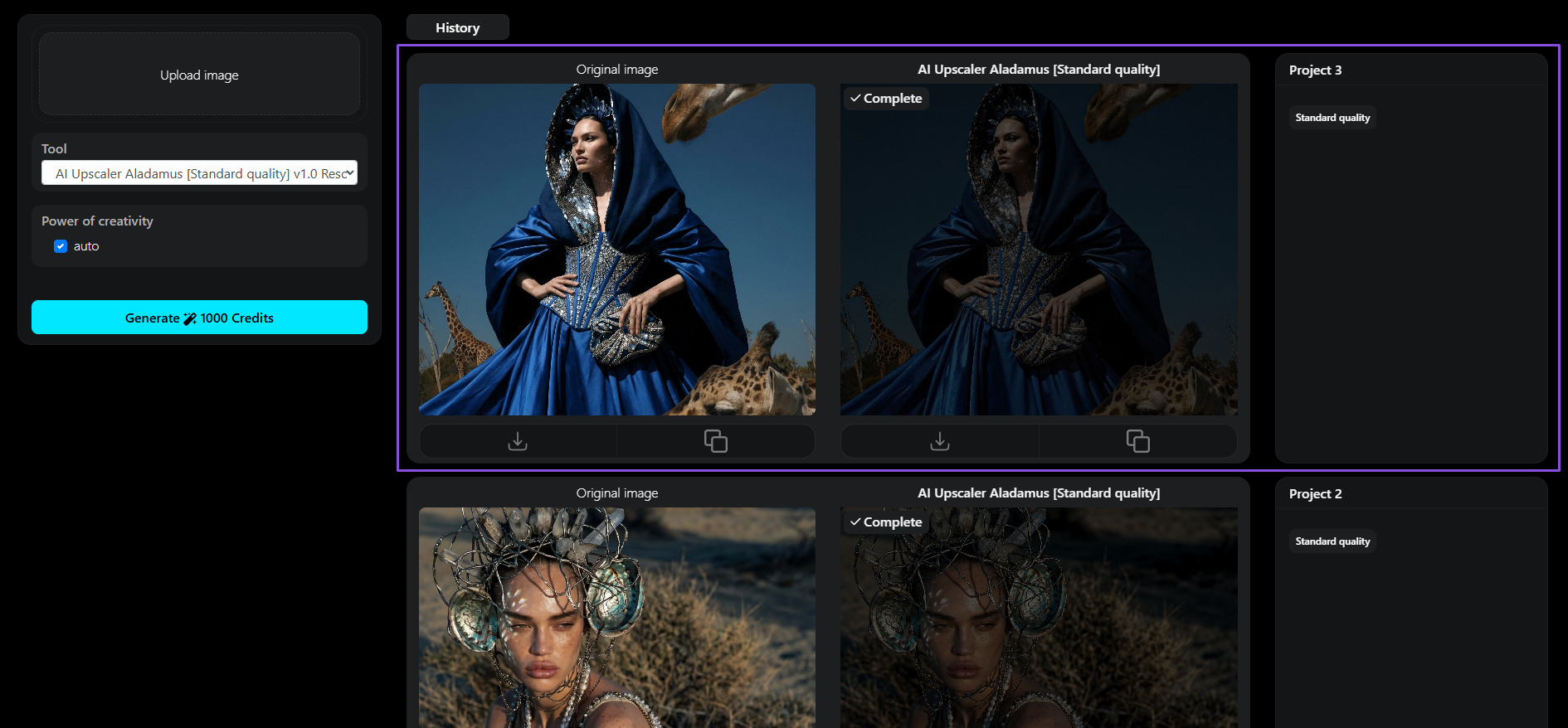
As shown in the screenshot, each project in the history is presented as a separate section.
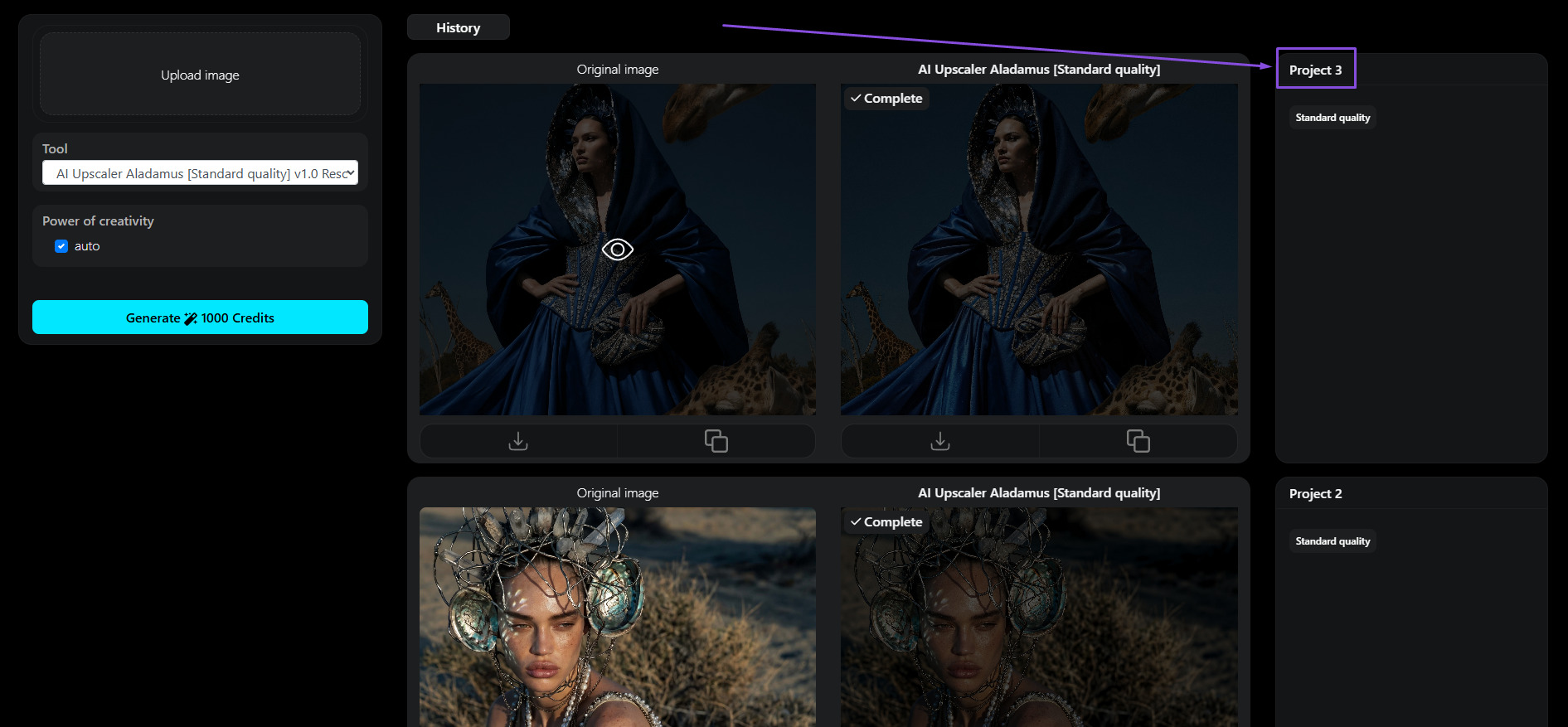
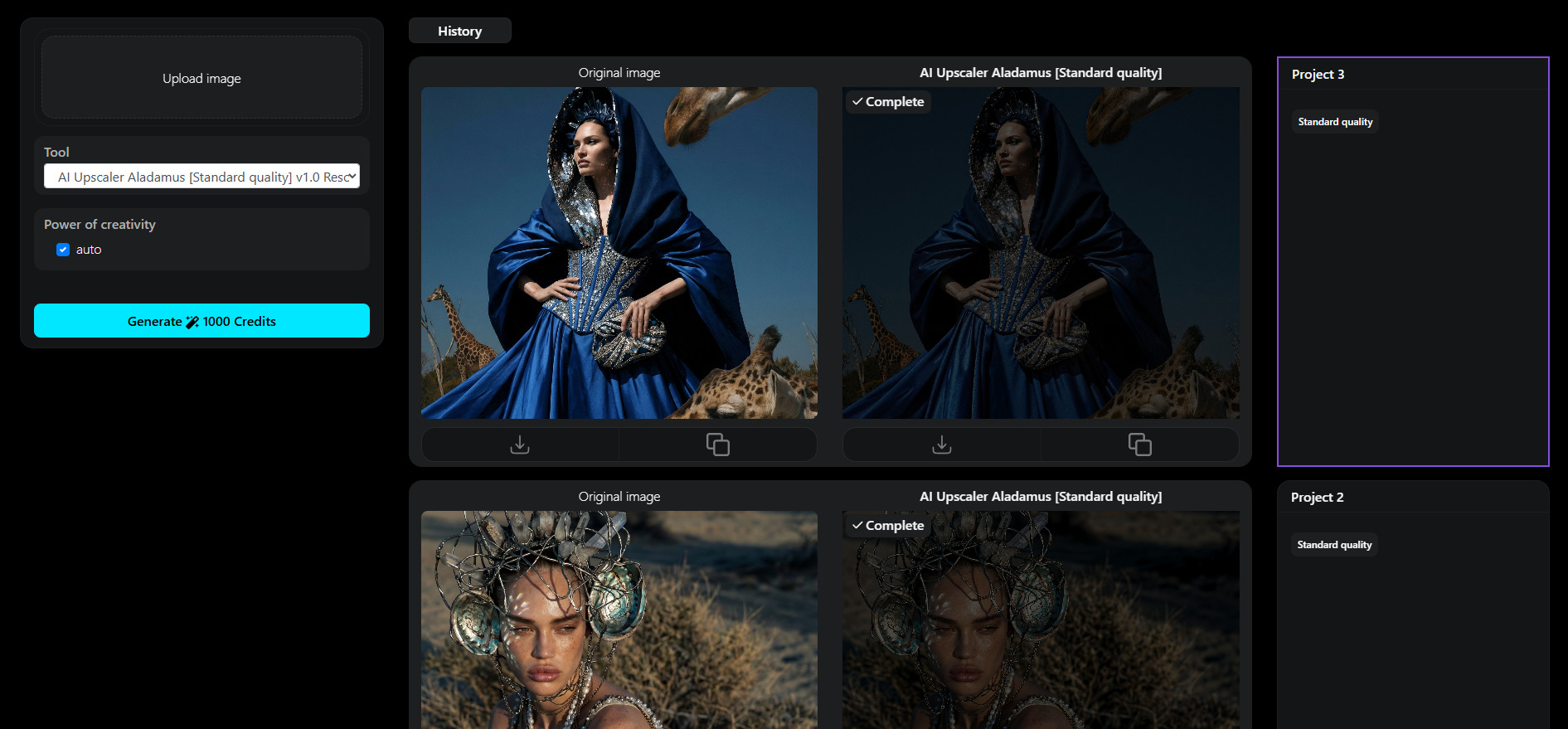
This is where the project number is displayed (Project 3). If you contact technical support, you will need to provide your Aladamus ID and project number:
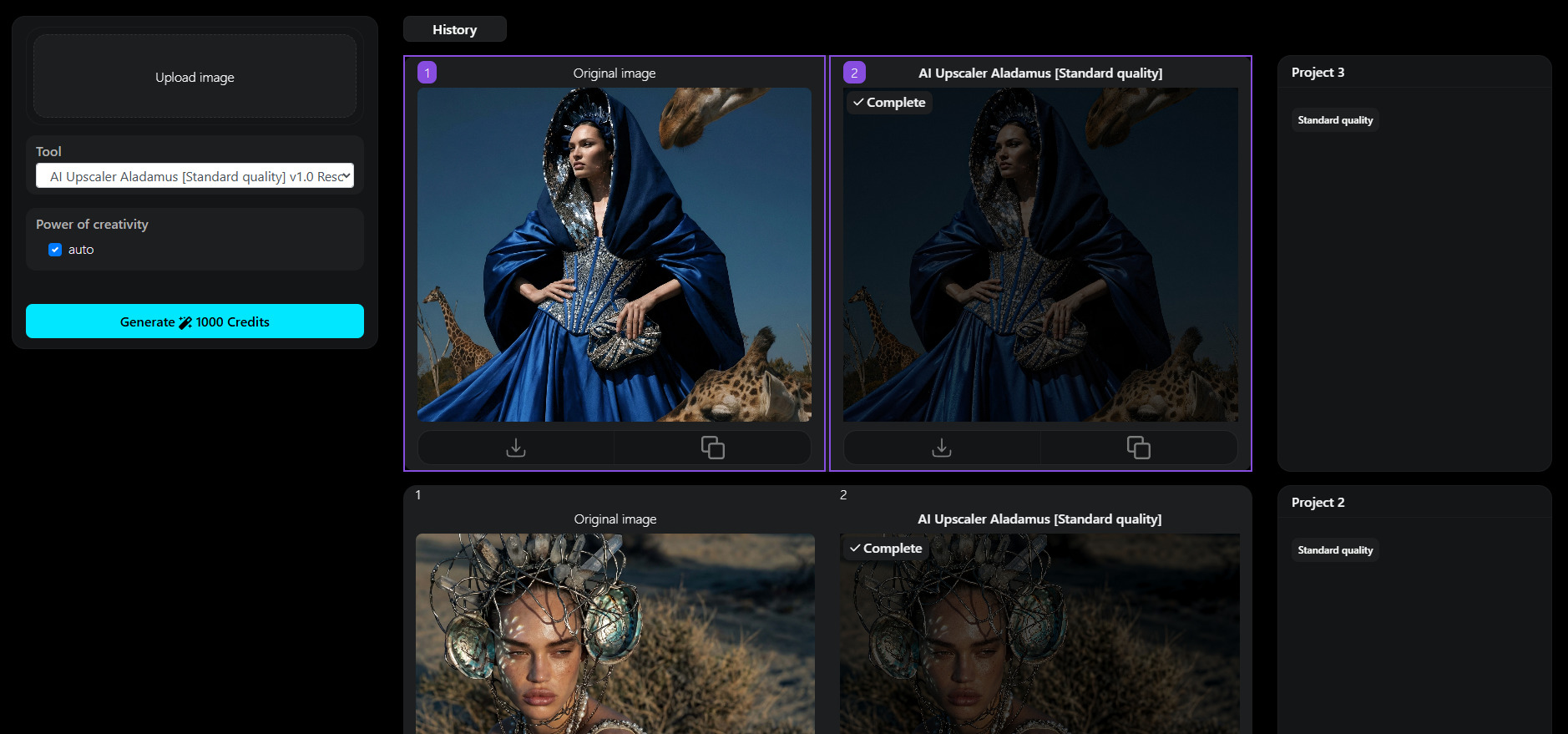
- 1. Original image
- 2. The selected tool and the generated result are displayed.
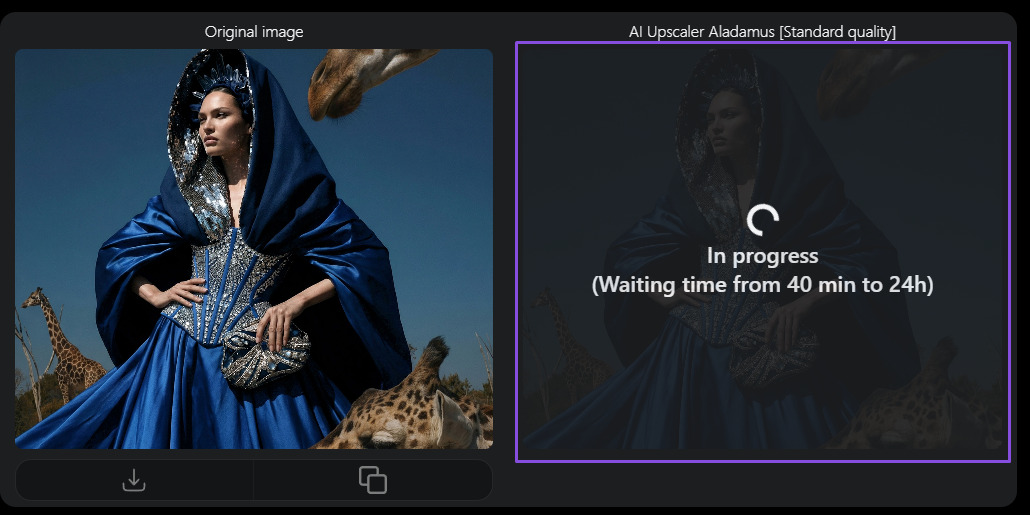
While the generation process is running, it looks like this:
This is the history block of the selected generation settings:
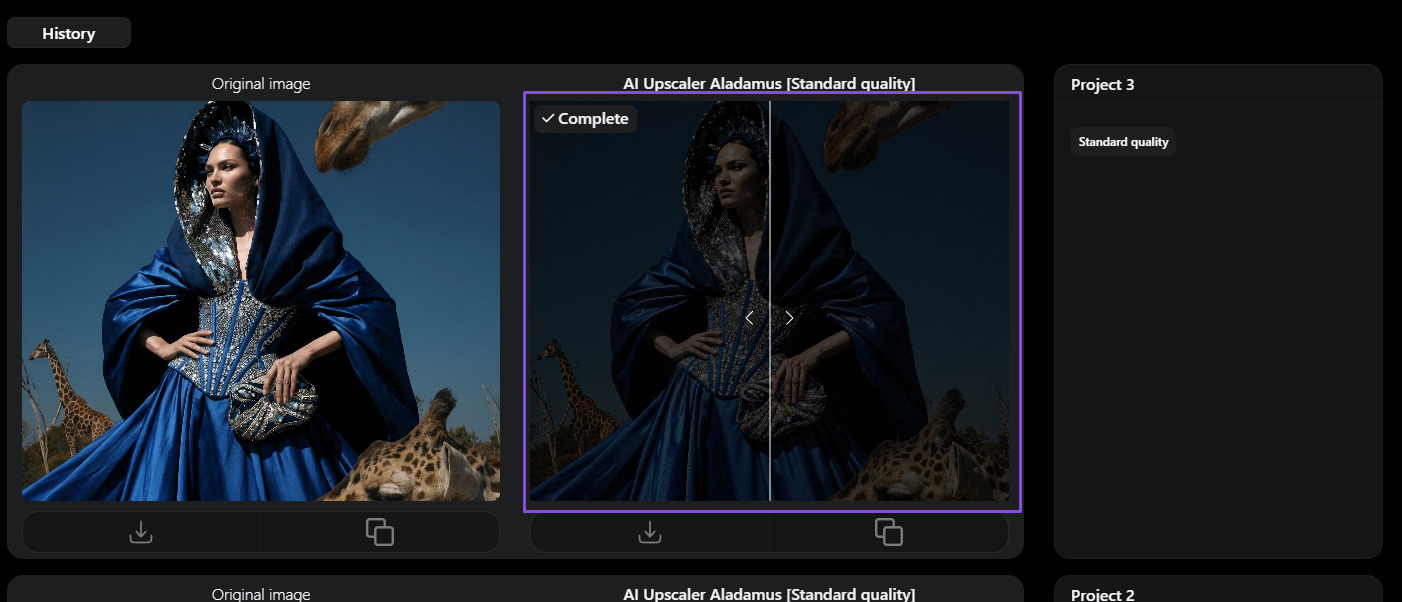
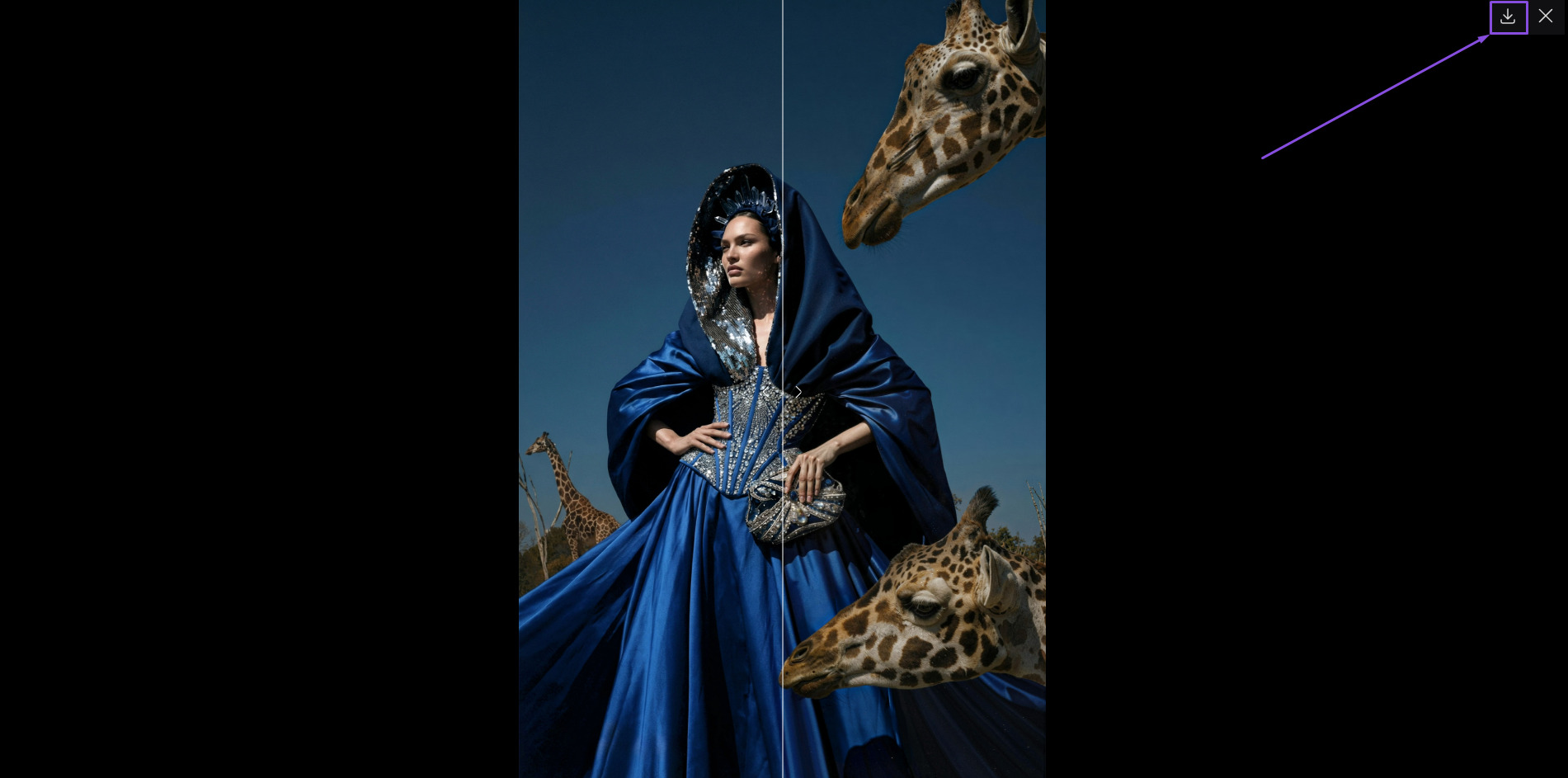
To view the before/after result, click on the image:
You can download the image in the preview window:
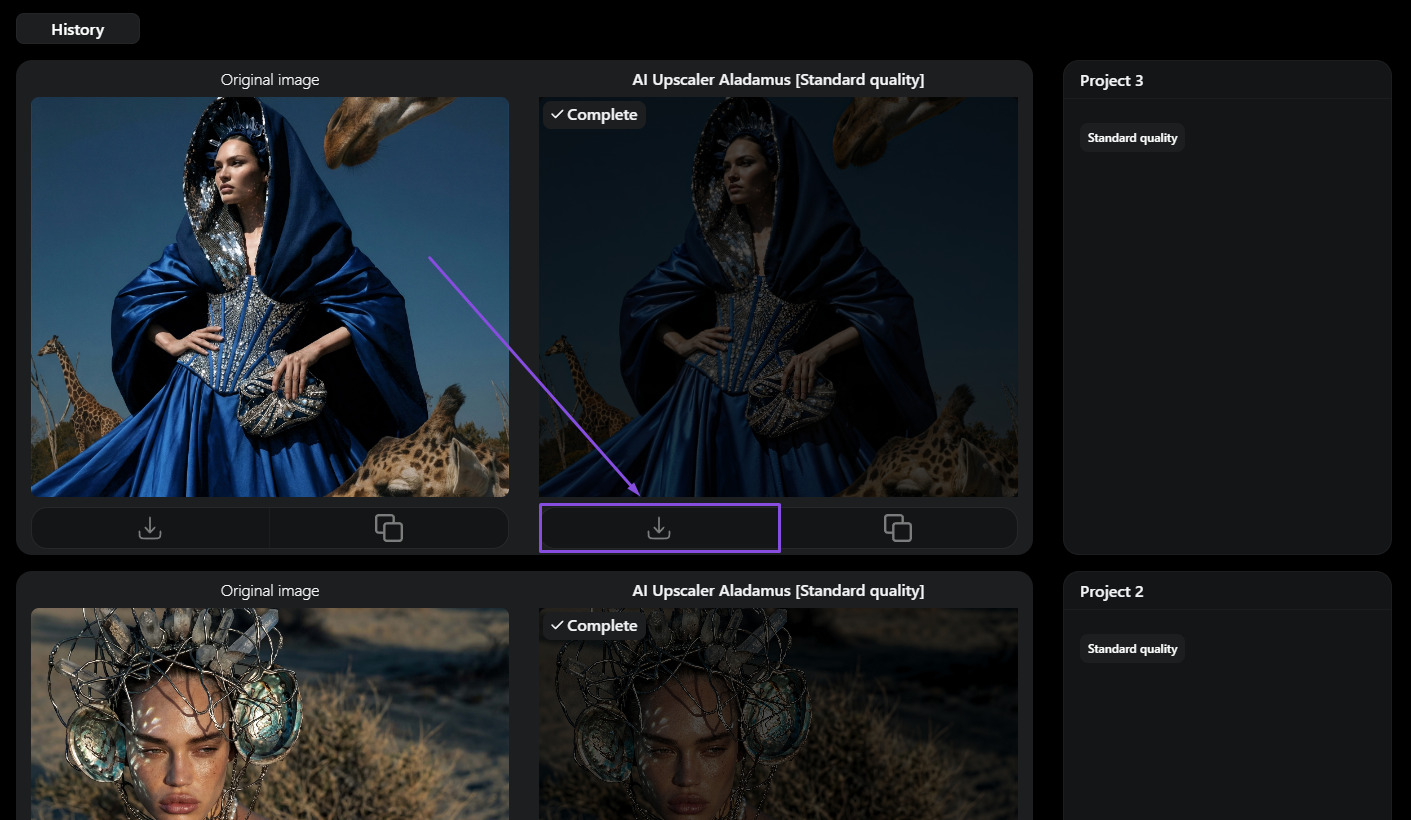
The image can also be downloaded from the panel below the image:
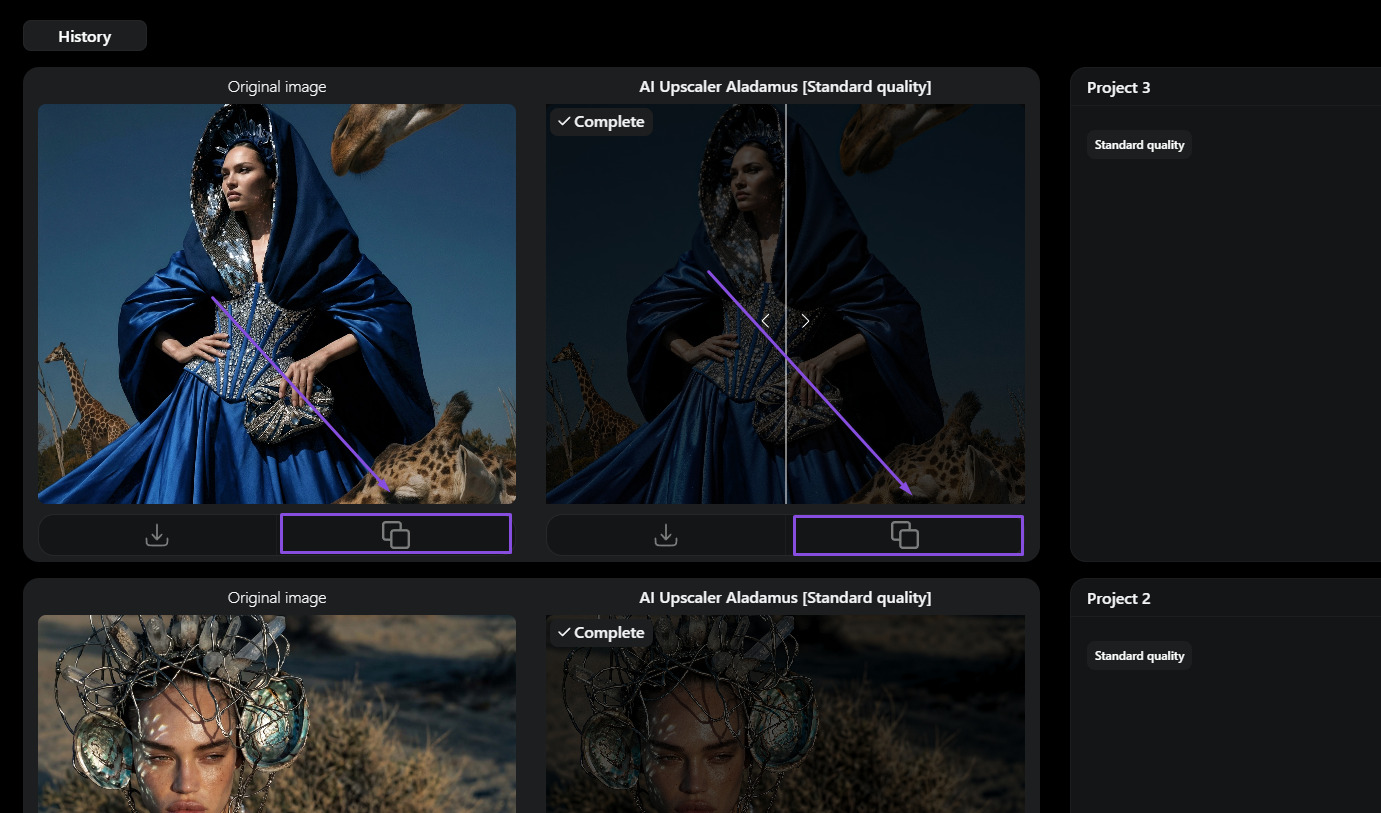
This button copies the image to the Upload Image section for use in the tool panel:
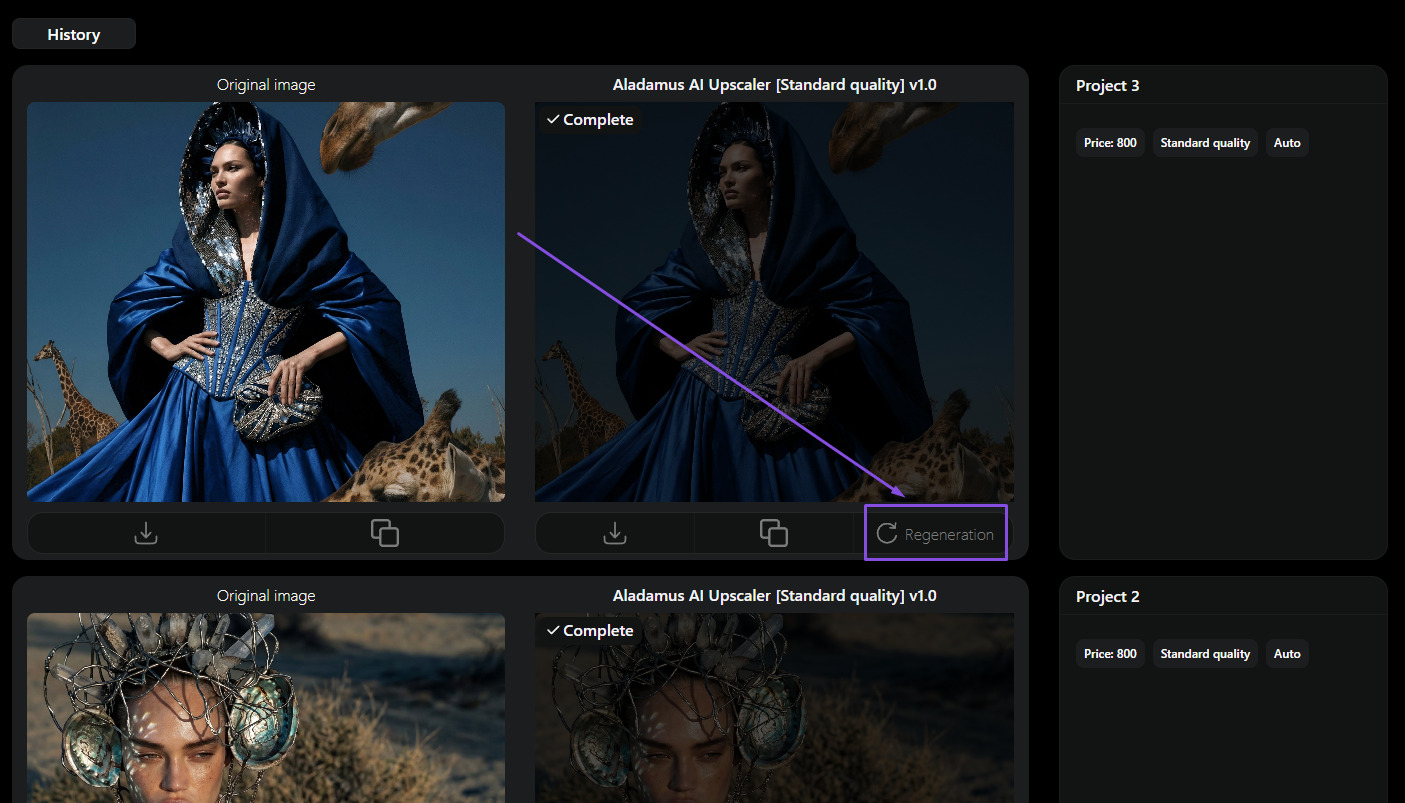
Regeneration is a convenient button for quickly launching (with one click) a new, different version (different Seed) of generations with the same settings and image: