Aladamus Local Micro-Detail Clarity Improver v1.0
First, we recommend that you read the Instructions for the correct algorithm for using AI Upscaler & Enhancer on Aladamus.
Aladamus Local Micro-Detail Clarity Improver v1.0Price: 50 Credits per 10% of the total uploaded image area. Minimum generation start cost is 50 Credits. More details. — this is a tool for local improvement and refinement of elements or objects by mask on an image, focused on improving the sharpness of micro-architectural details in images. The main feature of this tool is the desire to preserve similarity to the original image while improving it. When working on improving a selected image area, Aladamus Local Micro-Detail Clarity Improver v1.0 strives to preserve similarity to the original geometry shapes of objects, materials, lighting, etc.
The tool Aladamus Local Micro-Detail Clarity Improver v1.0 can improve all types of objects in an image.
It is important to consider that if the tool Aladamus Local Micro-Detail Clarity Improver v1.0 determines that the resolution of the uploaded image is insufficient for high-quality elaboration of small details, generation will be automatically canceled. In this case, the tool will report the need to prepare the image beforehand. For preparation, you must first process it using any model of your choice that works with the entire image area:
- Aladamus AI Upscaler [Power of Creative All Light Creativity] v1.0
- Aladamus AI Upscaler [Standard quality] v1.0
After enlarging and improving the original image, it can be re-uploaded to Aladamus Local Micro-Detail Clarity Improver v1.0 for further processing.
Tip. When working with any tools from the section "Tools that work with a local image area", as uploaded images it is better to use images that have already been processed through any tool from the section "Tools that work with the entire image area" (if any are available).
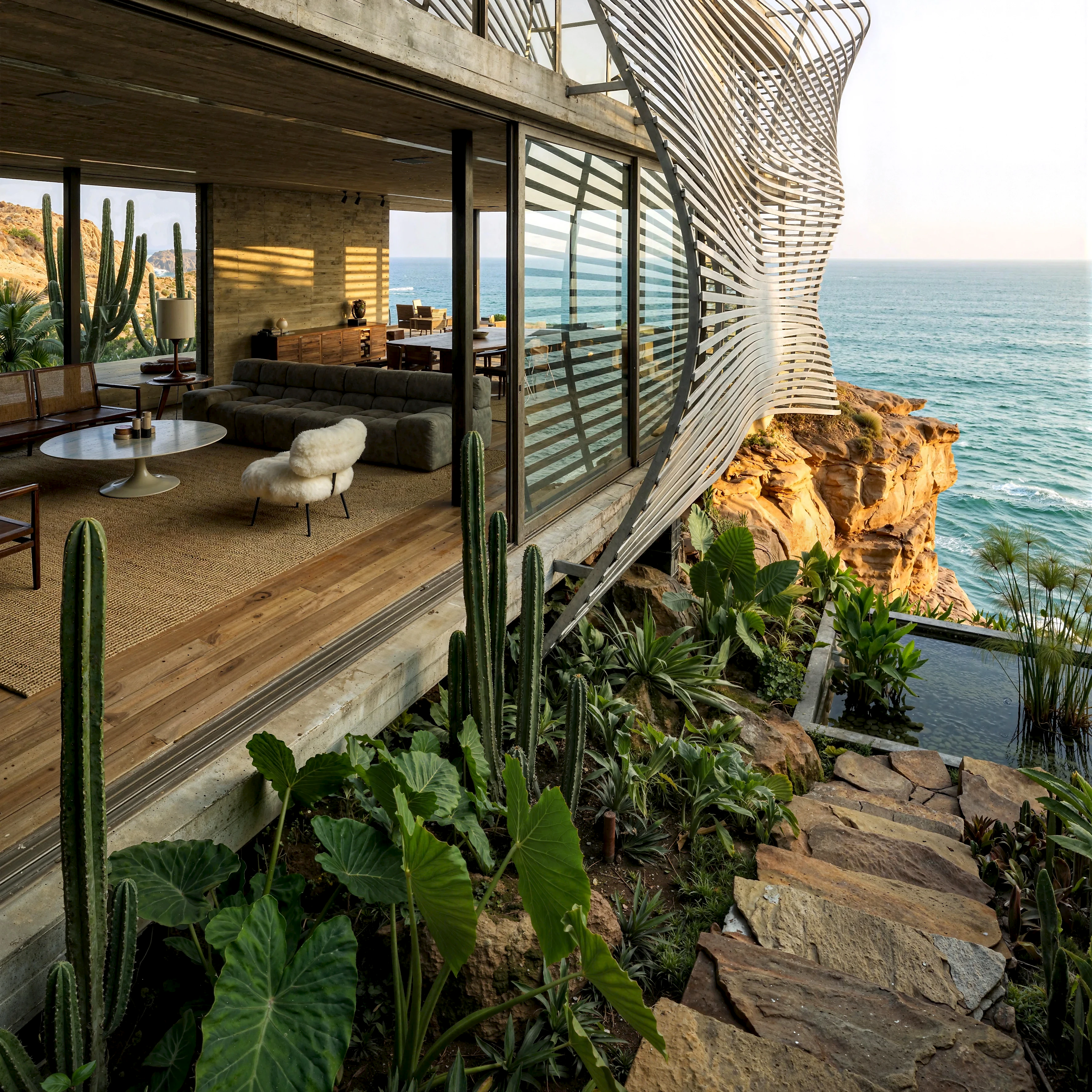
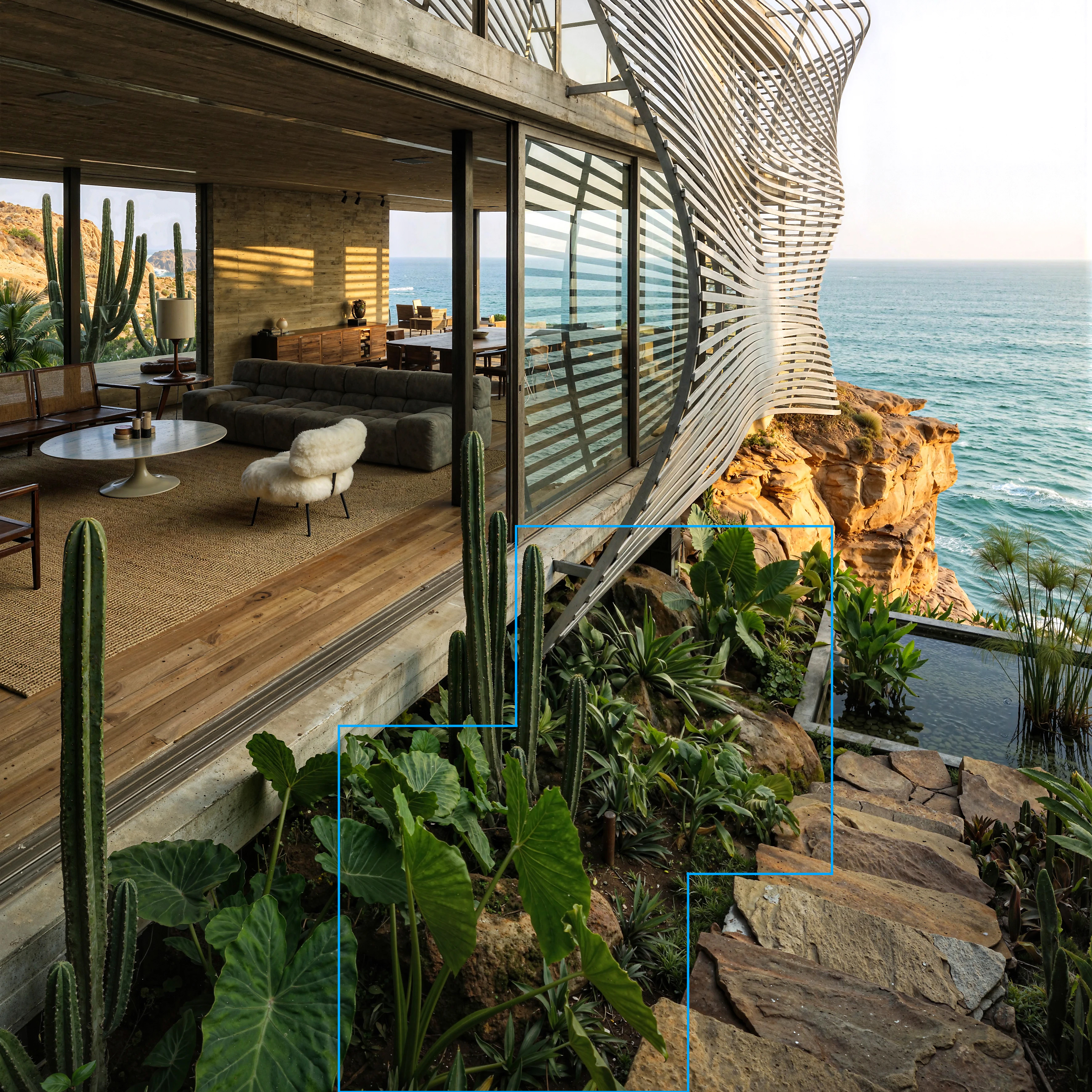
It is important to understand that Aladamus Local Micro-Detail Clarity Improver v1.0 is intended primarily for cases where a moderate, not strong, generative image enhancement is needed. This tool is not recommended in cases where elements in the image need to be significantly transformed, their appearance substantially changed, or objects significantly corrected.
Example of incorrect use: if the image contains non-photorealistic objects, you should not expect that the creative power of the tool Aladamus Local Micro-Detail Clarity Improver v1.0 will be sufficient for their deep transformation into a photorealistic appearance. For such tasks, among the local refinement tools, it is recommended to use: Aladamus Enhancer CGB Mir [Creative Medium + Saving geometry] v1.0 and Aladamus Enhancer CGB Mir [Creative Medium + Saving geometry] v1.0.
Thus, Aladamus Local Micro-Detail Clarity Improver v1.0 is the optimal choice for users who need to refine a local image area with quality, without deep creative transformation.
Step-by-step instructions for setting up the tool
1. AI Upscaler & Enhancer
Go to the AI Upscaler & Enhancer section
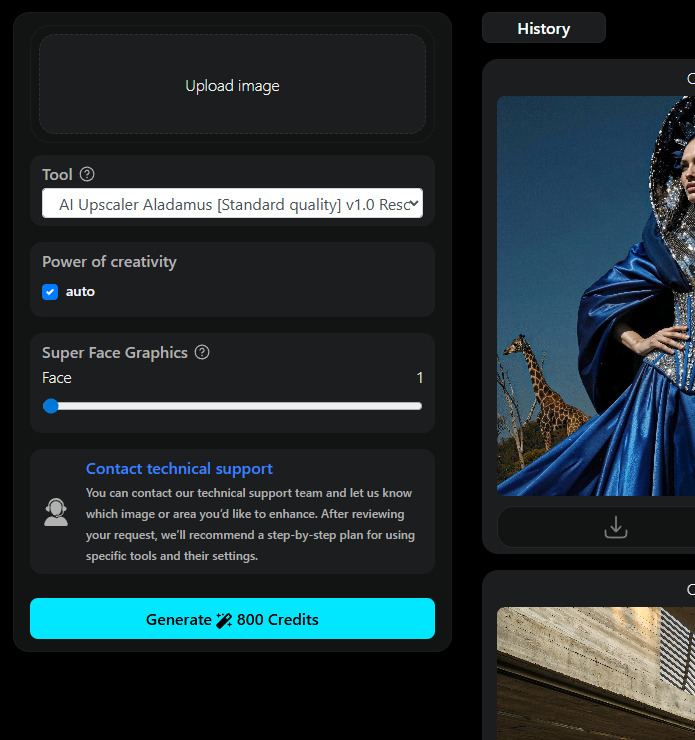
2. Upload Image
Upload your image that you want to improve.
Note: JPEG, WEBP, PNG formats are supported. Maximum image resolution up to 10000px
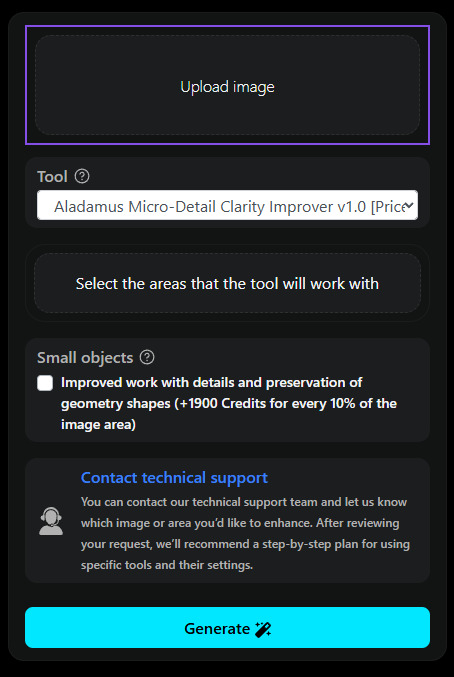
3. Tools
Select the tool Aladamus Enhancer CGB Mir [Creative Medium + Saving geometry] v1.0 [Price: 50-250 Credits for 10% of the image area].
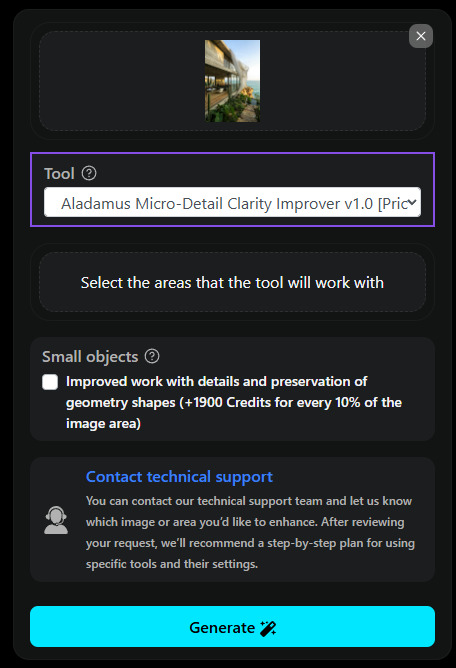
4. Select the areas that the tool will work with
Let's specify the local area to which the tool will be applied. Click the Select the areas that the tool will work with button.
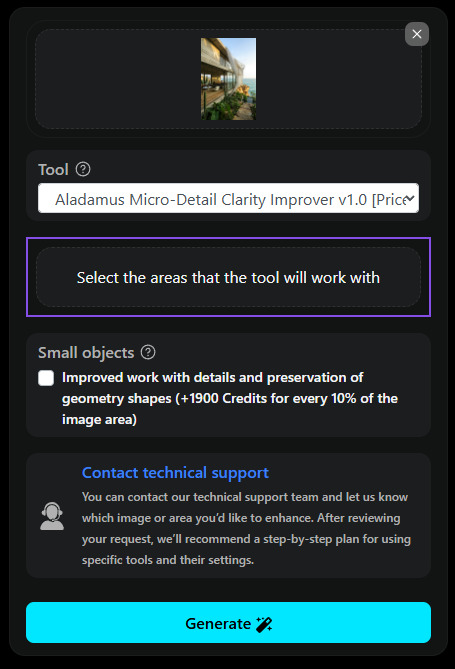
When you click the Select the areas that the tool will work with button, a window opens for selecting objects, areas of the image that you want to improve.
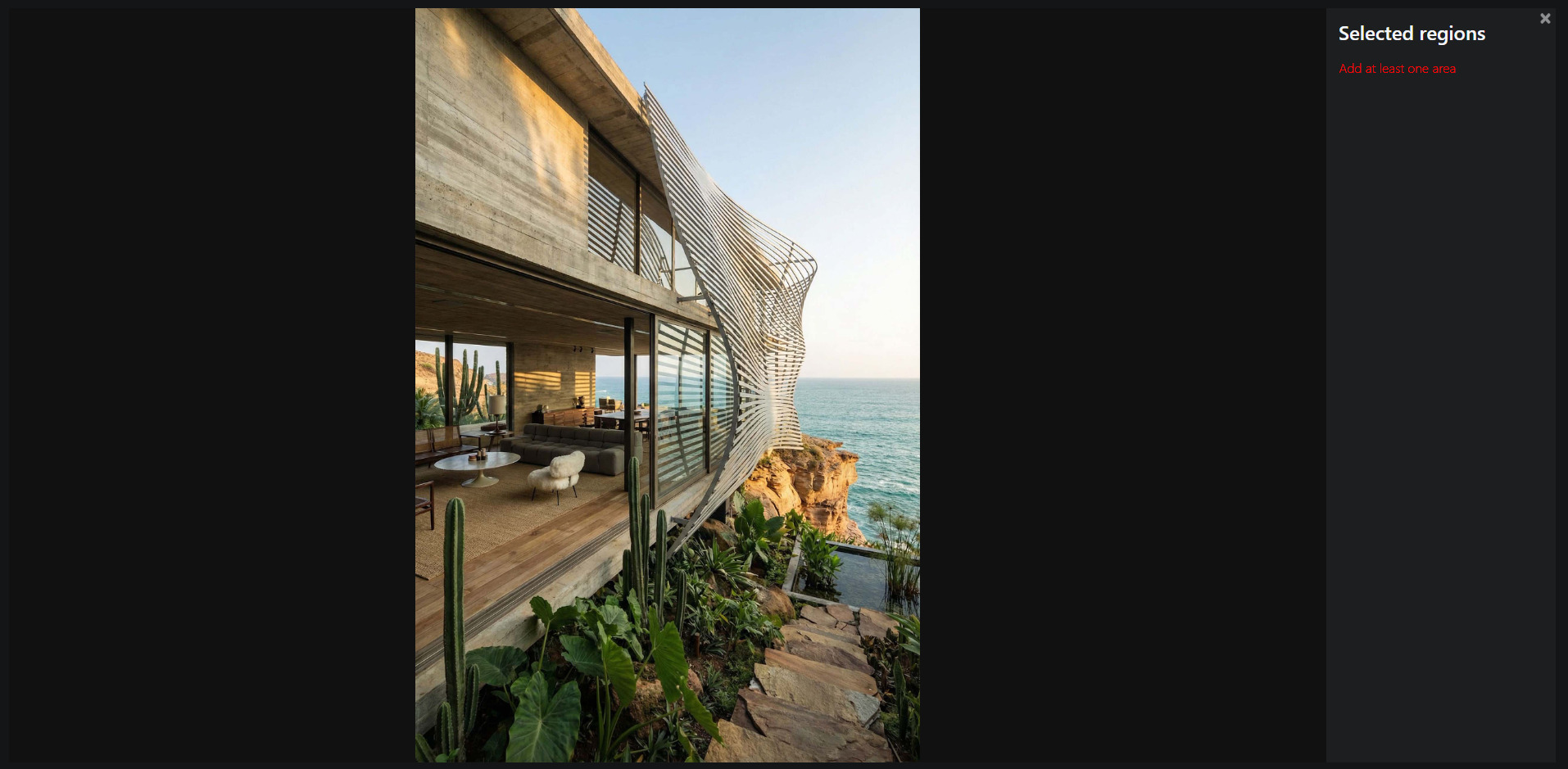
Working with areas:
- Hold down the left mouse button and outline an area (preferably along the contour of the silhouette/shapes). You can create many areas. Each is highlighted in its own color.
- Each area can be deleted by clicking the cross, or you can delete all areas at once Delete all regions
- The cost of generation is calculated automatically according to the following principle: the total
area of the bounding boxes of all selected areas is summed up.
In addition to the total area, 20 Credits are added to the total cost of the entire generation for each
additional selection (any subsequent selection after the first is considered additional).
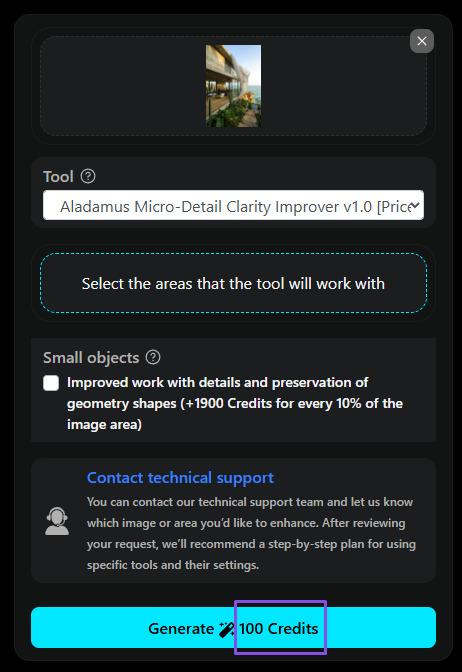
The minimum cost to start generation is 100 Credits. Even if you do not reach the
total area of selections and the sum of additional selections, in any case
the minimum start cost will be no less than 100 Credits (you can see the cost in the example
below, highlighted with a purple frame).
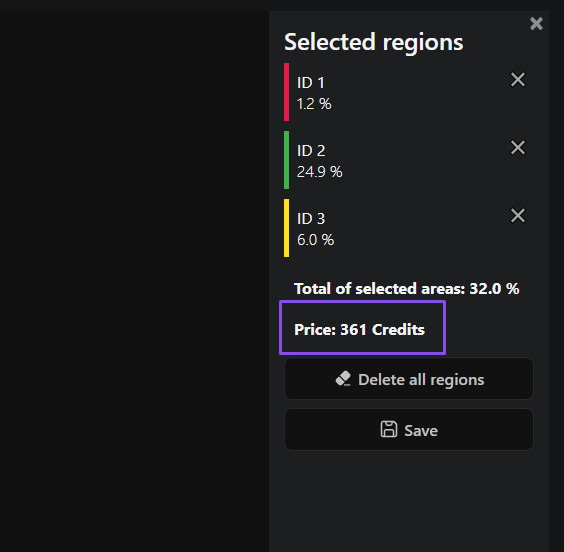
The price is also displayed on the "Generation" button.
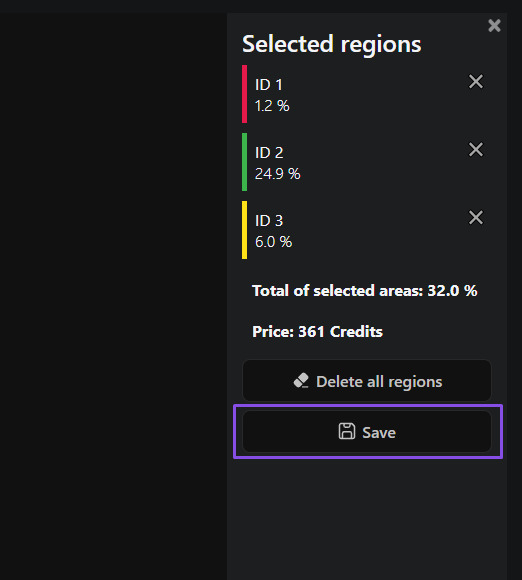
- Save — save the result (If you close the window by clicking the cross in the upper
right corner, you will not save the selected areas).
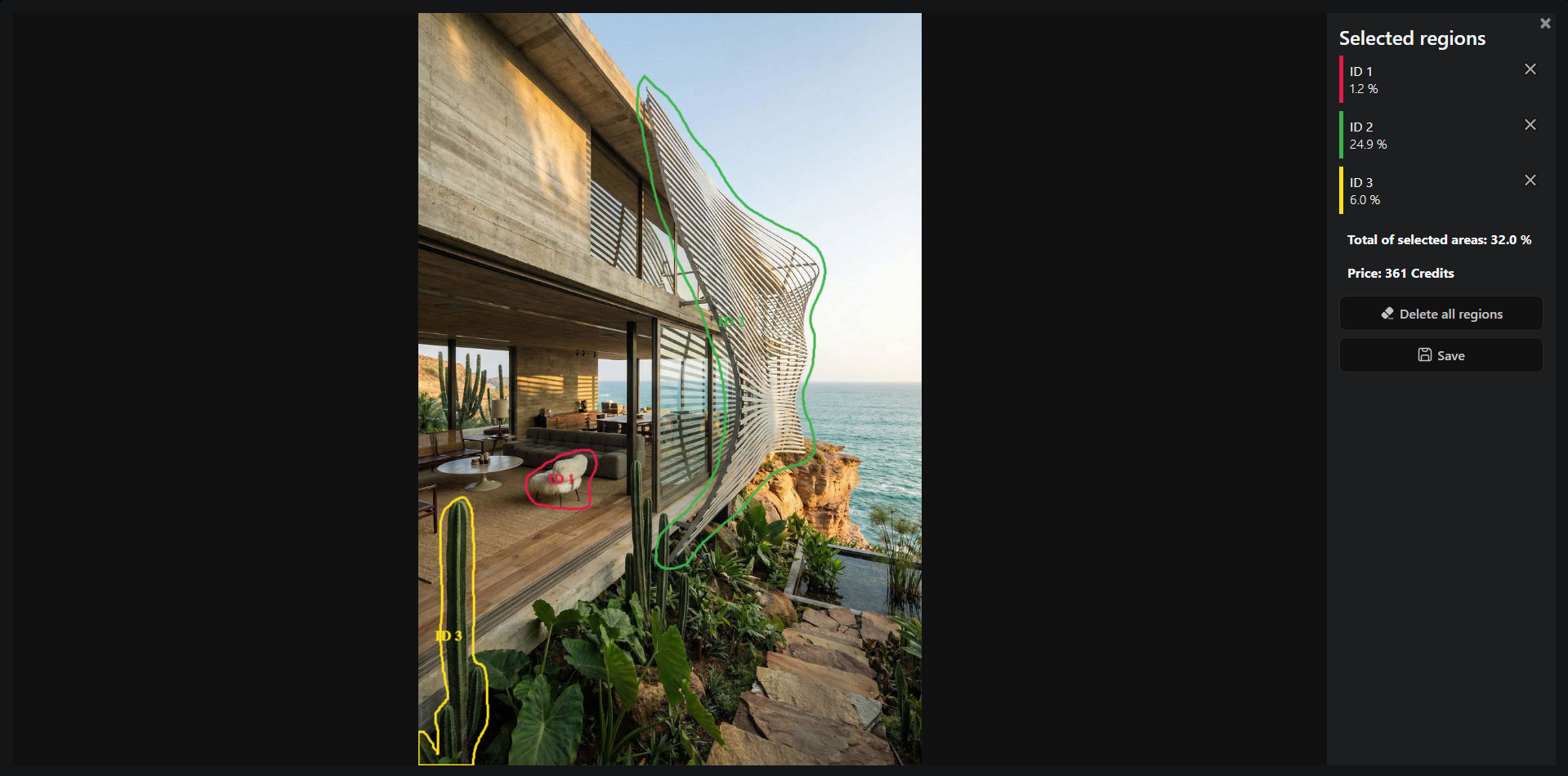
Let's provide an example of correct selection, from the point of view of improving graphics and at the same time advantageous, from the point of view of price. Here the total selection area is 32%. We recommend selecting objects or elements as a whole:
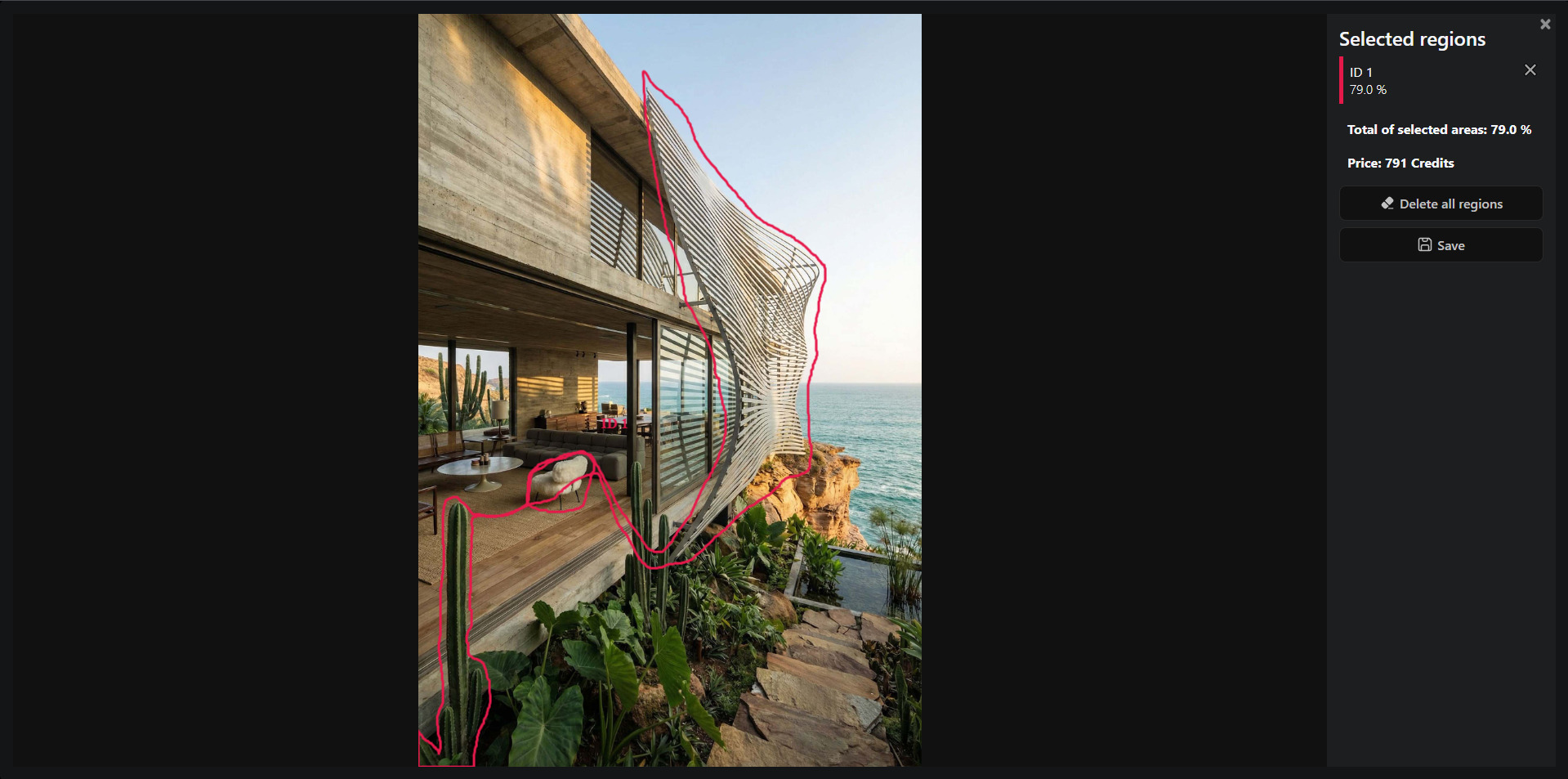
Let's provide an example of an unprofitable selection of areas from the point of view of cost. As we can see in the screenshot, the total selection area is 79%, while in the upper correct example it is 32%, and therefore it is more advantageous in terms of price. The automatic generation cost counter calculates the price based on the entire area of the bounding box of the selection.
After saving the selected areas, the Select the areas that the tool will work with button changes appearance:
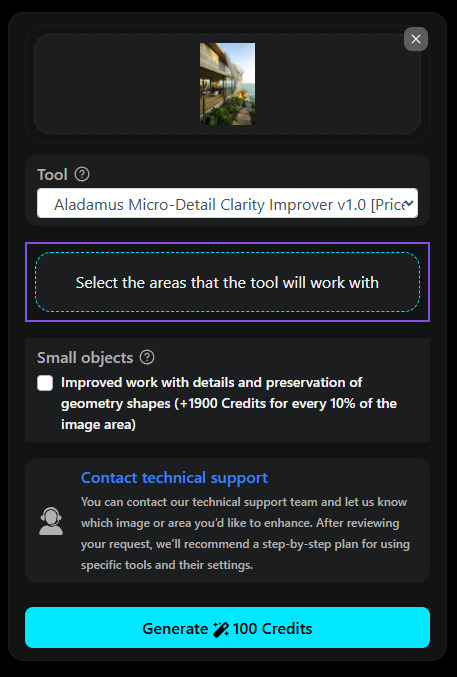
After you have saved the selected areas, you can open them again to check or edit them (if you do not click Save and close the window, your changes will not be saved).
When switching the tool to another one (for example, when moving from Aladamus Enhancer CGB Mir [Creative Medium + Saving geometry] v1.0 to Aladamus Enhancer CGB Mir [Creative Strong] v1.0 or Aladamus Local Micro-Detail Clarity Improver v1.0), all previously selected and saved areas will be used for the selected tool.
5. Improved work with details and preservation of geometry shapes
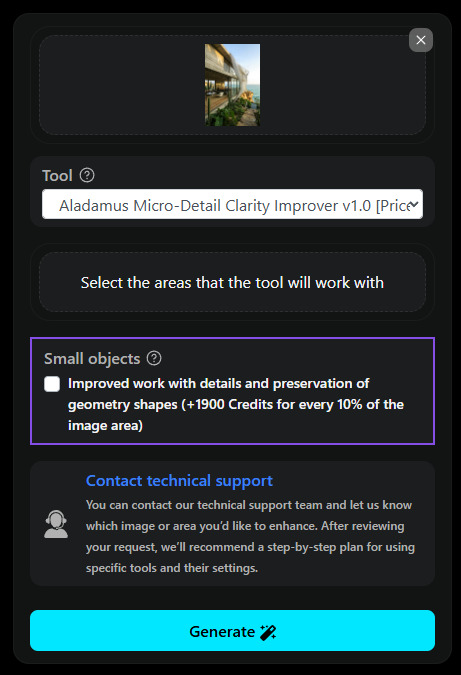
If within the selected image area that needs to be improved, there are small objects (for example, on the facade of a residential complex or other images — people, cars, trees and other small-scale elements) and the task is to preserve maximum similarity to the original image (geometry of shapes, color, materials) while improving them, then "Improved work with details and preservation of geometry shapes" must be applied to them.
In such cases, it is mandatory to use the "Improved work with details and preservation of geometry shapes" setting. Without activating it, generation may be canceled with the corresponding reason indicated. In this case, you will need to re-create the generation task with the specified setting enabled.
The cost of the "Improved work with details and preservation of geometry shapes" option is an additional 250 to 950 Credits for every 10% of the image. Since the final cost when using this option is determined only after generation is complete, before starting, in addition to the cost of the selected model, a deposit of 950 Credits for every 10% of the image is reserved. If the actual processing cost turns out to be lower, the difference is automatically returned to the user's balance.
Let's provide an example of an image with small objects, when this option needs to be enabled:
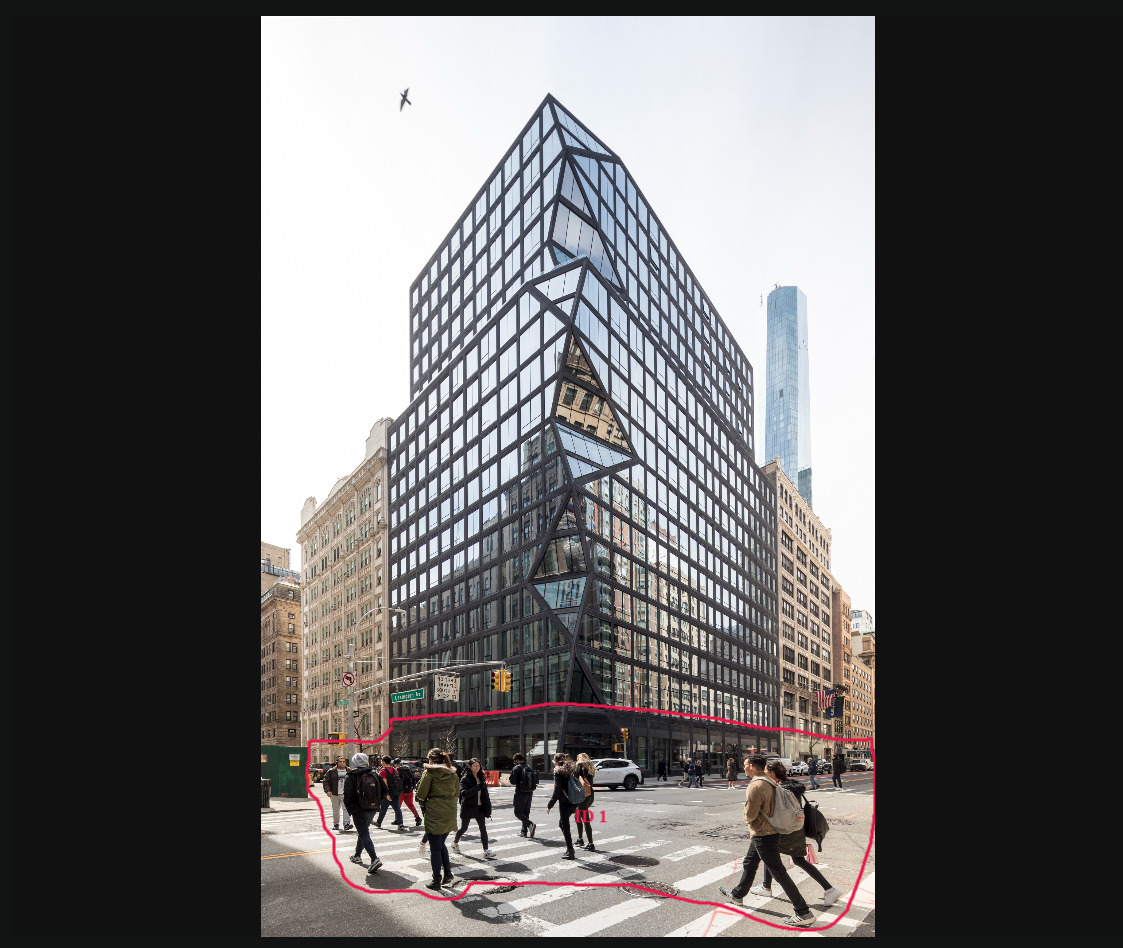
6. Generation
After completing the settings, start the process with the "Generation" button. The finished result will appear in your History section.